Home Apps
Admin apps
Sales chatbot Sales CRM Support for your customers
Platform
Tracking panel Zones and alerts Reports Mobile app Compatible devices Device catalogue Connects to other systems Developer access Our own maps Every client, separate Backups Service status Where your data lives
Your brand
Your domain and logo Your app in the stores Your website Security padlock and email What you need to start How long it takes Brands already running Your reseller panel
What improvement you offer your client
Road safety Anti-theft and recovery Fuel control Regulatory compliance Preventive maintenance Delivery reliability Working-hours control Cold chain School routes Asset control Onboard video Guard patrols Field work Tracking with no device Satellite coverage Automatic alerts Silent devices Connect to their system
Who to sell it to
Freight transport Passenger transport School transport Delivery and last mile Construction and machinery Agriculture Field services Food and refrigerated Vehicle rental Security and guarding
Pricing
How billing works Volume plans What's included Your margin Payment methods Annual prepayment
Resources
What's New News Look up an IMEI Your first 30 days Technical support Training Sales material Frequently asked How to start a tracking business What it costs to start Which devices to buy How to bill your client Which protocol your GPS uses What the PESV is The GPS is not reporting Look up an IMEI Is my device supported? Your carrier's APN Look up a list of IMEIs Compare devices How much data the SIM uses When 2G shuts down When do I break even? Quote with your brand
Contact Request Demo
News for distributors4 min read

Notice: message your customers from the platform, with your brand

Offers, expiry dates, new features or anything you want to tell them: your notice is published within minutes, choose who gets it and your customers see it on the panel and in the app.

Notice message on the panel and in the phone app

What it is for

Notice is the tool to talk to your customers from the tracking platform itself. The notice appears when they open the panel and also in the app on their phone, with your brand.

OffersPromotions for devices, cameras or services, with their deadline.
Expiry datesRemind them their service is about to expire, in time and without phone calls.
New featuresTell them what is new and what it is for.
MaintenanceAnnounce scheduled work or any service update.
Each one talks only to their own customersNotices are created by the distributor, the manager or the platform administrator, and each of them can only send them to their own accounts. A distributor never reaches another distributor's customers.

Step 1. Choose a template and write your notice

Open Notice and click New announcement. Choose a template: Update, Payment reminder, Maintenance, Discounts and offers, Welcome, Custom, Simple message or Annual renewal. Write the title and the text; on the right you see the preview exactly as your customer will see it.
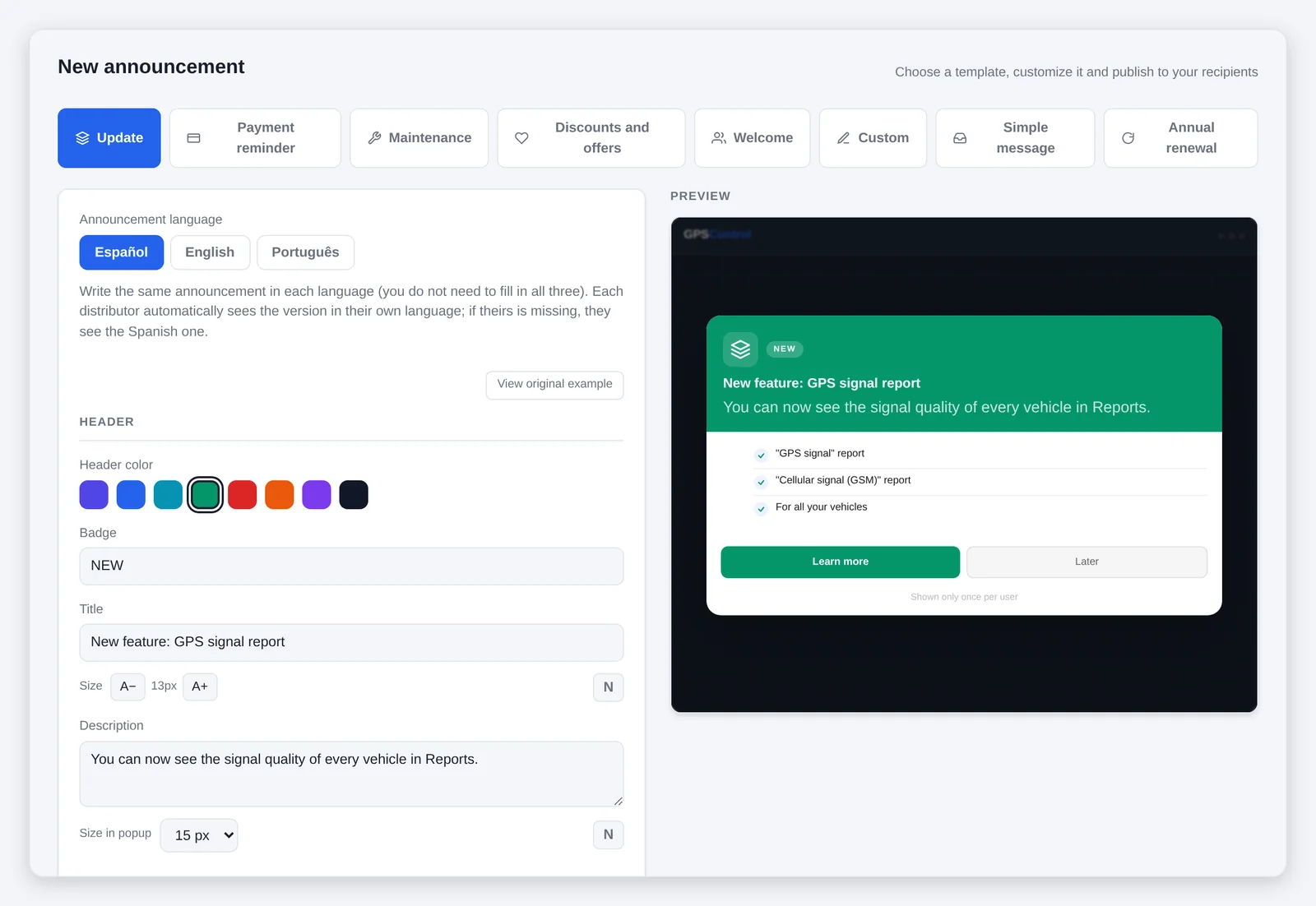
Notice editor with templates, header colour, title size and preview
Write the notice and check it in the preview.

Step 2. Colours and text size

Choose the header colour and make the title bigger or smaller with A− and A+. You can also choose the size of the notice text. In the Update and Custom templates you can write the notice in Spanish, English and Portuguese, and each customer gets it in their account language.

Step 3. For your own design, use Custom

With the Custom template you write the content your way: bold, colours, lists, links and images, in the text size you prefer.
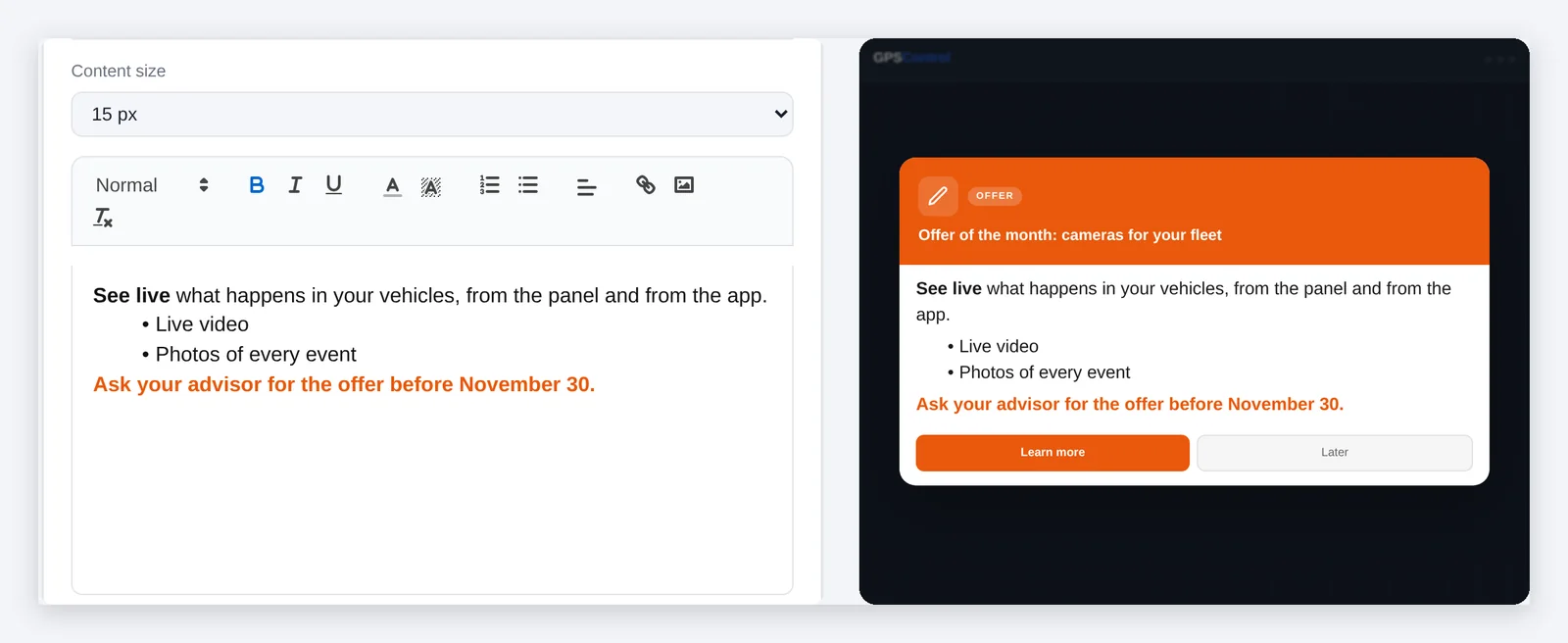
Custom template with text editor, colours and a list, and its preview
Free content with your own format.

Step 4. Choose who gets it

In Recipients and delivery, choose "Everyone" to send it to all your accounts, or "Select recipients" to tick one or several of your customers. If you want it to go out later, set the date and time in Scheduled delivery; otherwise it goes out when you publish.
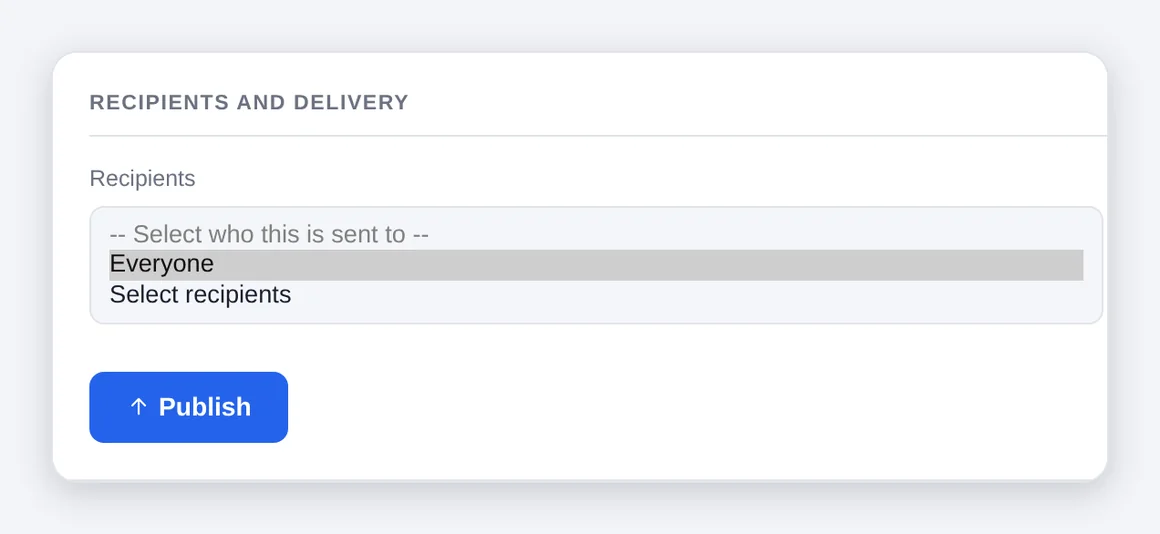
Recipients and delivery with the options list and the Publish button
Choose who gets it and publish.

Step 5. Leave a pinned bar on top of the panel

Tick "When closed, leave a bar at the top of the panel". The notice first shows as a window and, once closed, a bar with the text stays at the top of the panel. You decide how long it shows: just once, by hours and minutes (from 1 minute to 72 hours), several days (1 to 90) or until a date. When the period ends, the bar goes away by itself. The bar shows again every time the customer opens the panel, until the period ends.

You also choose the bar colour, how many seconds to wait before it can be closed and whether it has a "See more" button that opens a section of the manual, in the customer's language, or a web address.
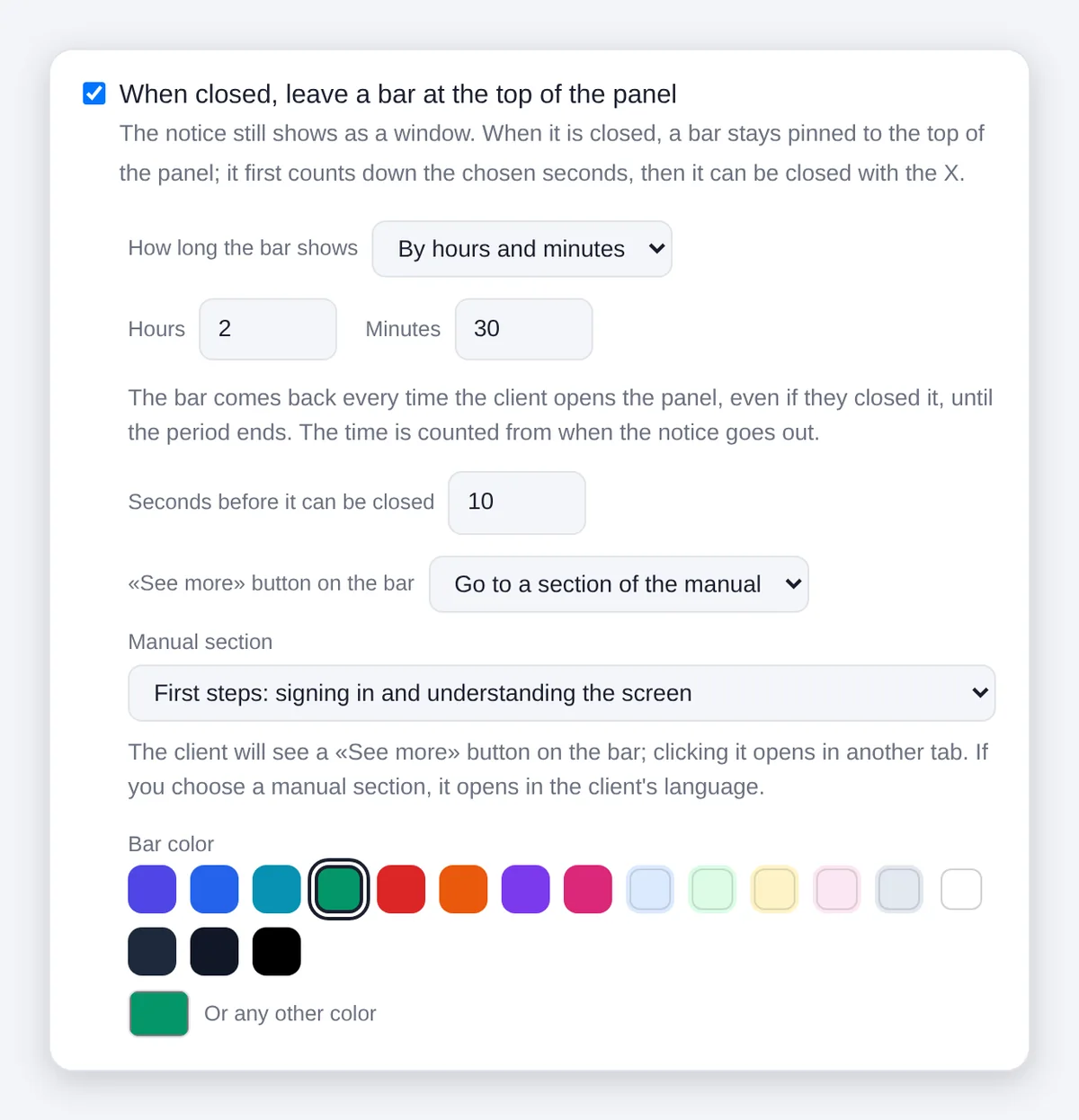
Bar settings: how long it shows, hours and minutes, seconds before closing, See more button and colour
Period, colour and "See more" button of the bar.

What your customer sees on the panel

First, the window with the notice:
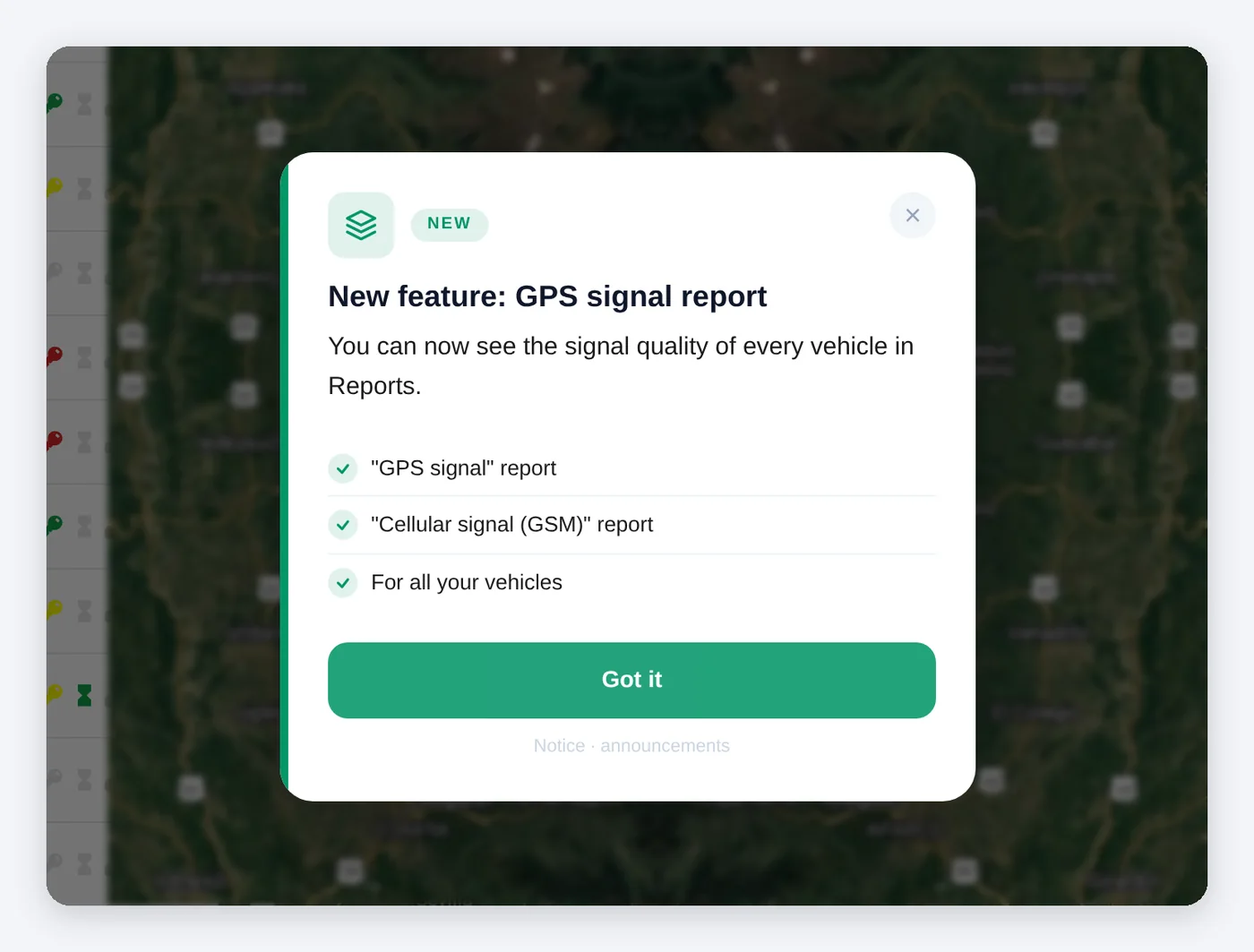
Window of a new feature notice over the tracking panel
The notice window.

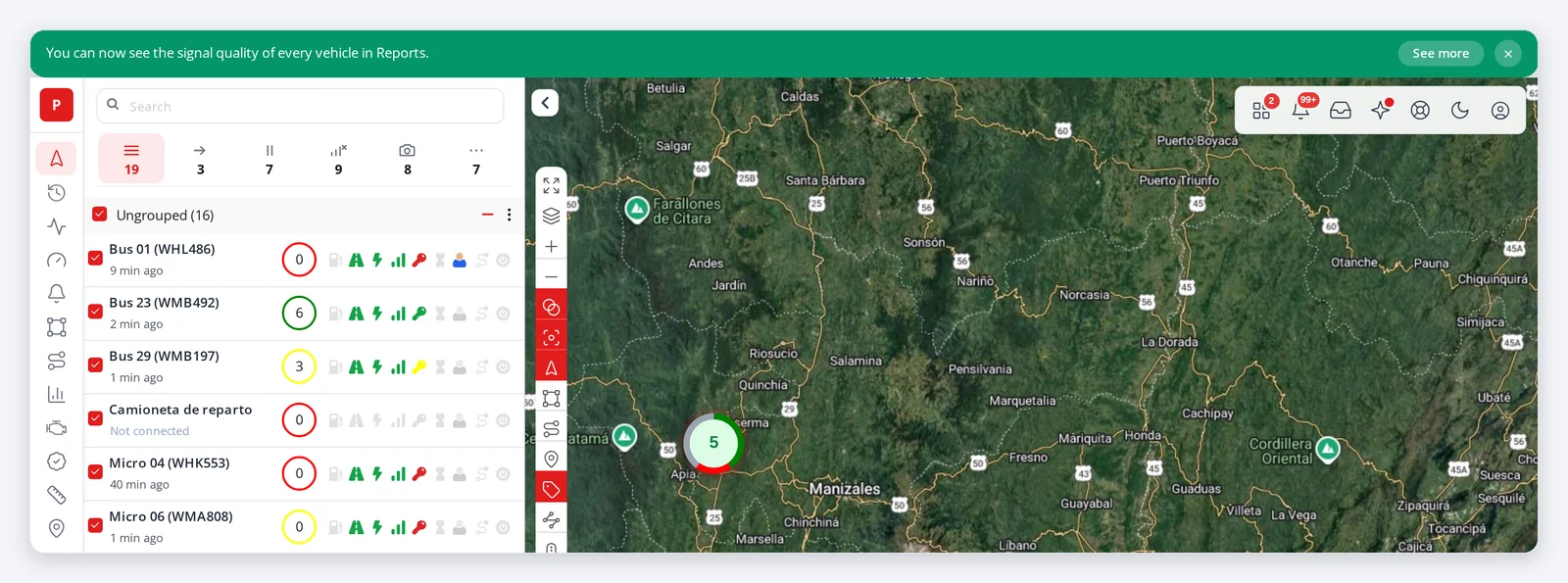
When it is closed, the bar stays on top without covering anything on the panel. Three examples: an offer, an expiry date and a new feature with its "See more" button.

Three sample bars: offer in orange, expiry in red and new feature in green with the See more button
One bar for each message, with its colour.
Tracking panel with the green bar pinned at the top
The bar at the top of the panel.

And in the app too

If your customer uses the platform mobile app, the notice also reaches their phone: as a notification and as a window when they open the app. The pinned bar is only on the web panel.
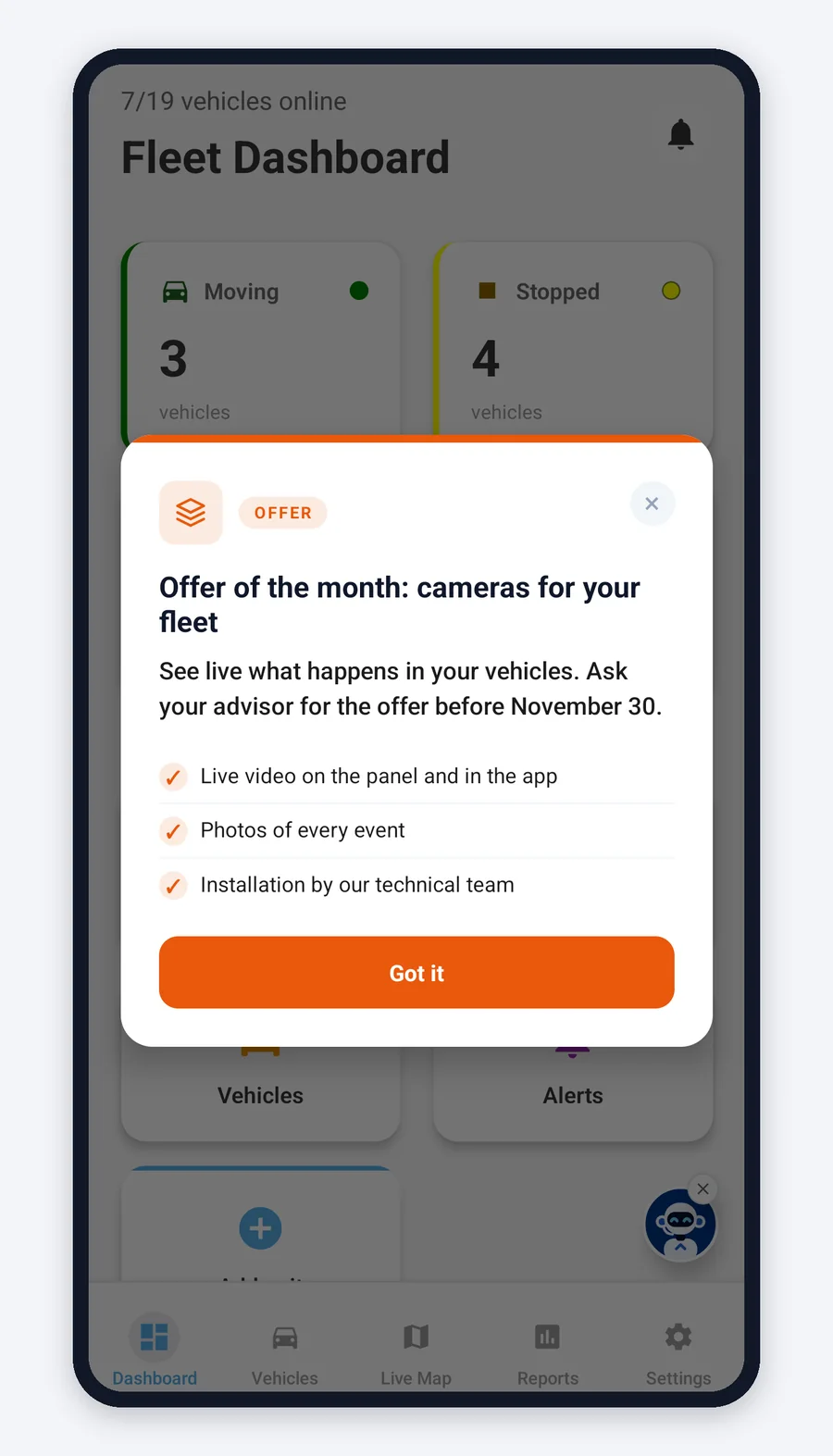
Offer notice inside the phone app
The same notice in the app.

Know who saw it

In Statistics you see how many customers opened each notice, and in History, what each customer received.

Don't have your tracking platform yet?

Ask for a demo and we will show you how it works, with your brand and your customers.

Request a demo
More news